Linux Rescue System
Rescue is a Debian live system that boots from the network into RAM. It does not use your disks until you mount them or run installimage. Use it when the OS will not boot, when you forgot root, or when you want a clean install.
What Rescue is
Hetzner starts Rescue with PXE (network boot). Your NVMe or SATA drives sit idle. That is why Rescue can repair a broken system without writing to it. The environment is Debian-based. You can install extra tools with apt while Rescue is running.
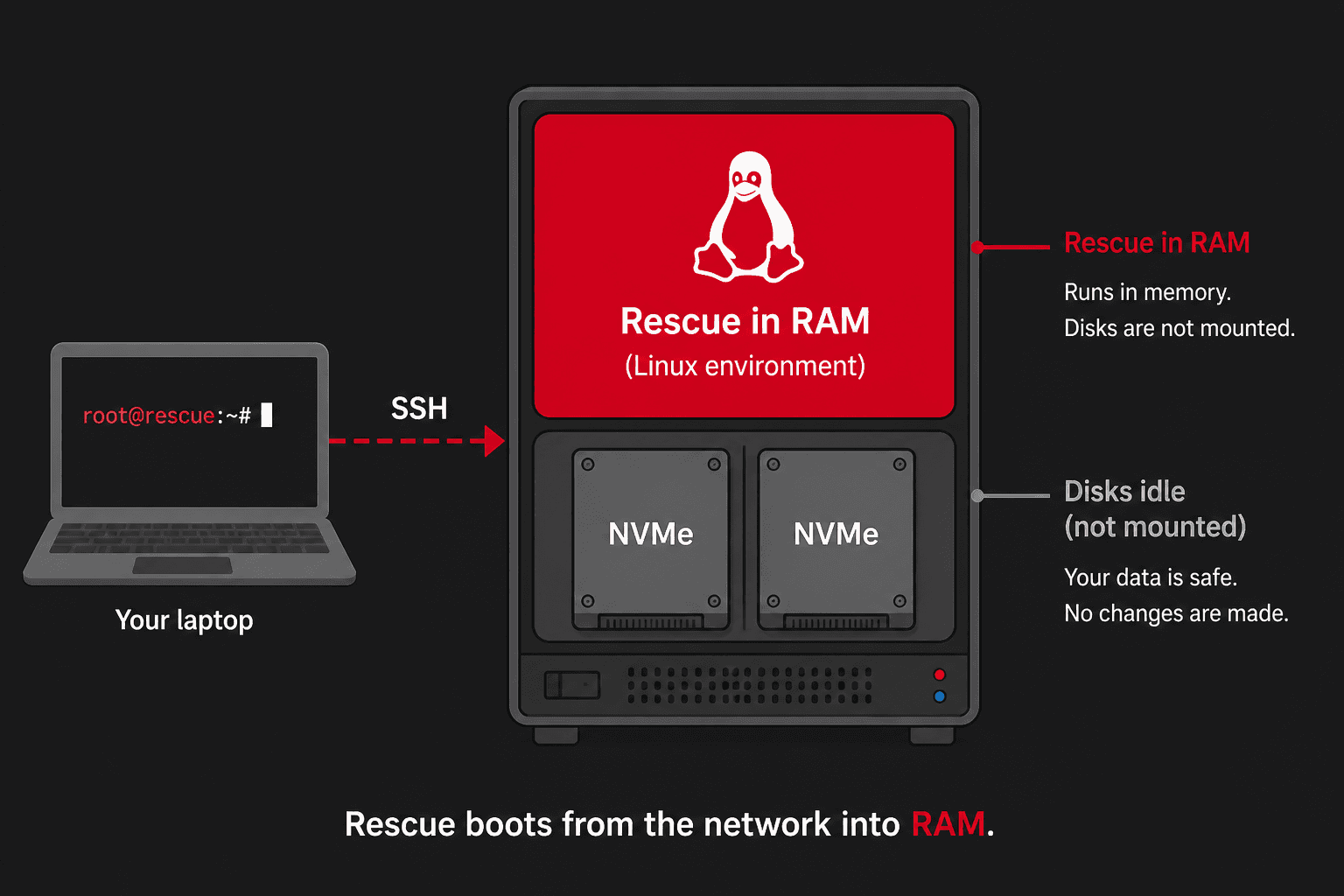
Activate and boot
- Open Robot → Servers → your server → Rescue.
- Choose Linux, 64-bit. Add an SSH key if you have one. Activate.
- Copy the temporary root password Robot shows you.
- Reboot. If you still have SSH into the old OS:
rebootConnection to 203.0.113.10 closed by remote host.Connection to 203.0.113.10 closed.That “closed by remote host” line is normal: the machine is restarting. If SSH is already dead, skip reboot and use Robot → Reset → hardware reset.
- Wait about a minute, then SSH from your laptop:
ssh root@YOUR.SERVER.IP# or, Rescue also listens on 222ssh -p 222 root@YOUR.SERVER.IPThe authenticity of host '203.0.113.10 (203.0.113.10)' can't be established.ED25519 key fingerprint is SHA256:abCDefghIJKlmnopQRSTuvwxYZ0123456789abcd.Are you sure you want to continue connecting (yes/no/[fingerprint])? yesWarning: Permanently added '203.0.113.10' (ED25519) to the list of known hosts.root@203.0.113.10's password:Welcome to the Hetzner Rescue System.Hardware data: CPU : AMD EPYC 7502P 32-Core Processor Memory : 128 GB Disk : /dev/nvme0n1 512 GB Disk : /dev/nvme1n1 512 GBroot@rescue ~ #Type yes for the host key, then the Rescue password from Robot. You should see Welcome to the Hetzner Rescue System and a prompt that says root@rescue, not your old hostname. If you still see root@Ubuntu-…, Rescue did not boot — activate it again and reset.
Look before you touch disks
Three commands, in this order. None of them change the disks. Read the sample, then match it to your screen.
lsblk — list block devices
lsblk = LiSt BLocK devices. A tree of disks, partitions, RAID, and LVM. In Rescue the MOUNTPOINT column is usually empty: nothing is mounted yet.
lsblkNAME MAJ:MIN RM SIZE RO TYPE MOUNTPOINTnvme0n1 259:0 0 476.9G 0 disk├─nvme0n1p1 259:1 0 256M 0 part│ └─md0 9:0 0 255M 0 raid1├─nvme0n1p2 259:2 0 1G 0 part│ └─md1 9:1 0 1022M 0 raid1└─nvme0n1p3 259:3 0 475.7G 0 part └─md2 9:2 0 475.6G 0 raid1 ├─vg0-root 253:0 0 50G 0 lvm ├─vg0-swap 253:1 0 8G 0 lvm └─vg0-var 253:2 0 417.6G 0 lvmnvme1n1 259:4 0 476.9G 0 disk├─nvme1n1p1 259:5 0 256M 0 part│ └─md0 9:0 0 255M 0 raid1├─nvme1n1p2 259:6 0 1G 0 part│ └─md1 9:1 0 1022M 0 raid1└─nvme1n1p3 259:7 0 475.7G 0 part └─md2 9:2 0 475.6G 0 raid1 ├─vg0-root 253:0 0 50G 0 lvm ├─vg0-swap 253:1 0 8G 0 lvm └─vg0-var 253:2 0 417.6G 0 lvmHow to read it: two physical disks (nvme0n1, nvme1n1) each have three slices. Matching slices join as md0 / md1 / md2 (software RAID). The big array md2 is split by LVM into vg0-root, vg0-swap, vg0-var. Your root filesystem is almost always vg0-root here.
NAME MAJ:MIN RM SIZE RO TYPE MOUNTPOINTsda 8:0 0 476.9G 0 disk├─sda1 8:1 0 256M 0 part├─sda2 8:2 0 1G 0 part└─sda3 8:3 0 475.7G 0 partHere there is no md and no vg0. Root is usually the last big partition: /dev/sda3.
cat /proc/mdstat — RAID status
/proc/mdstat is a live kernel file: multiple-device RAID status. Rescue often auto-starts arrays so you can mount them.
cat /proc/mdstatPersonalities : [raid1]md2 : active raid1 nvme0n1p3[0] nvme1n1p3[1] 498860032 blocks super 1.2 [2/2] [UU]md1 : active raid1 nvme0n1p2[0] nvme1n1p2[1] 1046528 blocks super 1.2 [2/2] [UU]md0 : active raid1 nvme0n1p1[0] nvme1n1p1[1] 262080 blocks super 1.2 [2/2] [UU]unused devices: <none>Look at [2/2] [UU]: two devices expected, two present, both Up. [_U] or [U_] means one disk is missing. A progress bar under the array is a rebuild — wait, do not wipe yet.
Personalities : [raid1] [raid0] [raid6] [raid5] [raid4] [raid10]unused devices: <none>Only “Personalities” and “unused devices” means Linux knows how to do RAID, but no array is running. Match this with the plain sda / nvme0n1 tree from lsblk.
ls /dev/mapper/ — LVM names
LVM volumes show up as files under /dev/mapper/. control is always there (the LVM device mapper). Extra names like vg0-root are your volumes.
ls /dev/mapper/control vg0-root vg0-swap vg0-varcontrolIf you only see control, mount a partition such as /dev/sda3, not a mapper path.
Where is / really?
The three cases below cover most Hetzner installimage boxes. They are a starting set, not every layout Linux can boot. Root is often a stack: partition, then RAID, then maybe encryption, then LVM, then the filesystem.
lsblk -f is the best first picture. Mount the top of the stack (the volume that actually holds etc, usr), not a RAID member underneath it.| You see | Meaning | Typical root device | On this guide |
|---|---|---|---|
sda3, nvme0n1p2, vda1 | Plain partition | /dev/sda3, /dev/nvme0n1p2 | Single-disk install. vda is a VM disk (Proxmox guest). |
md0, md1, md2, md127 | Software RAID (mdadm) | Often /dev/md2, or LVM on top of it | Usual two-disk Hetzner box. See RAID. |
vg0-root, ubuntu--vg-root | LVM logical volume | /dev/mapper/vg0-root or /dev/vg0/root | Very common after installimage. Same volume, two paths. |
cryptroot, luks-… | LUKS encrypted volume | /dev/mapper/cryptroot | Unlock first (cryptsetup luksOpen). Not the installimage default. |
dm-0, dm-1 | Device Mapper (generic) | /dev/dm-0 | Kernel name for LVM, LUKS, and multipath. Prefer the /dev/mapper/… name. |
subvol=@ / @root | Btrfs subvolume | Partition plus -o subvol=@ | Ubuntu/Fedora desktop style. See File System. Rare on installimage. |
rpool/ROOT/… | ZFS dataset | zpool import then a dataset mount | More common on Proxmox than on plain Ubuntu/Debian. |
mpatha | Multipath (SAN) | /dev/mapper/mpatha | Enterprise SAN. Uncommon on a Hetzner dedicated auction box. |
| NFS / iSCSI / NBD | Network root | A network device, not a local disk | Diskless / PXE OS. Rescue itself is PXE; your installed OS is still on local disks. |
Layers stack. You will often see more than one of the rows above at once:
- Plain partition
- LVM on a partition
- RAID → LVM (typical Hetzner RAID1 +
PART lvm) - LUKS → LVM (you encrypted the PV yourself)
- RAID → LUKS → LVM
- Btrfs on LUKS
lsblk -fblkidcat /proc/mdstatpvs; vgs; lvsls /dev/mapper/findmnt /# only if the disk looks encrypted (crypto_LUKS in lsblk -f):cryptsetup luksDump /dev/nvme0n1p3What you should see
NAME FSTYPE LABEL UUID MOUNTPOINTnvme0n1p3 linux_raid_member└─md2 LVM2_member └─vg0-root ext4 8f3a… /dev/mapper/vg0-root: UUID="8f3a…" TYPE="ext4"md2 : active raid1 nvme0n1p3[0] nvme1n1p3[1] [2/2] [UU] LV VG Attr LSize root vg0 -wi-a----- 50.00gcontrol vg0-root vg0-swap vg0-varTARGET SOURCE FSTYPE/ none rootfs # Rescue itself — disks not mounted yetfindmnt / in Rescue shows Rescue’s own RAM root, not your OS, until you mount … /mnt. After the mount, findmnt /mnt should show ext4/xfs on vg0-root (or whichever device you picked).
Mount the installed system
Mounting is “plug this filesystem into a folder”. Rescue uses /mnt as that folder. Success prints nothing — you just get the prompt back.
mount /dev/md2 /mntmount /dev/mapper/vg0-root /mntmount /dev/sda3 /mntcryptsetup luksOpen /dev/nvme0n1p3 cryptrootmount /dev/mapper/cryptroot /mnt# Btrfs with Ubuntu-style @ subvolume:mount -o subvol=@ /dev/sda2 /mntWhat you should see
Enter passphrase for /dev/nvme0n1p3:root@rescue ~ #root@rescue ~ # mount /dev/mapper/vg0-root /mntroot@rescue ~ #Check it worked with ls /mnt. You should see the installed OS folders: bin, etc, home, usr.
ls /mntbin dev home lib64 media opt root sbin sys usrboot etc lib lost+found mnt proc run srv tmp varmount: /mnt: special device /dev/md2 does not exist.mount: /mnt: fsconfig() failed: /dev/sda3: Can't lookup blockdev.If mount errors, go back to lsblk and pick the device that actually exists. Do not guess.
For a full chroot you also need boot, EFI, and pseudo filesystems. Hetzner Rescue includes a helper:
chroot-prepare /mntchroot /mntpasswdexitroot@rescue ~ # chroot-prepare /mntroot@rescue ~ # chroot /mntroot@Ubuntu-2404-noble-amd64-base / # passwdNew password:Retype new password:passwd: password updated successfullyroot@Ubuntu-2404-noble-amd64-base / # exitexitroot@rescue ~ #After chroot /mnt the hostname in the prompt is the installed OS (here Ubuntu). passwd hides what you type — that is normal. exit drops you back to root@rescue.
passwd inside the chroot changes the installed system’s root password, not the Rescue password. After you reboot out of Rescue, SSH with this new password.Install or reinstall an OS
From Rescue, run Hetzner’s installer. It wipes the drives you select:
installimageHetzner Online GmbH - installimage Please choose the operating system to install Ubuntu-2404-noble-amd64-base.tar.gz Ubuntu-2204-jammy-amd64-base.tar.gz Debian-12-bookworm-amd64-base.tar.gz Debian-13-trixie-amd64-base.tar.gz Archlinux-latest-amd64-base.tar.gz ... <OK> <Cancel>Arrow keys, Enter to pick an image. Next, Midnight Commander opens the config file. Edit drives, RAID, and PART lines, then save with F10 (or Esc then 0 if F10 prints a ~). When the installer finishes it prints something like:
=> Done.=>=> The system is now ready to boot.=> Please reboot the server.=>root@rescue ~ #Then reboot. Details and example configs: Ubuntu & Debian.
mdadm --stop /dev/md*wipefs -fa /dev/sd*wipefs -fa /dev/nvme*n1mdadm: stopped /dev/md2mdadm: stopped /dev/md1mdadm: stopped /dev/md0mdadm: error opening /dev/md*: No such file or directory“No such file” here only means no /dev/md… devices existed. Safe to continue if cat /proc/mdstat already showed unused devices.
/dev/nvme0n1: 8 bytes were erased at offset 0x00000200 (gpt): 45 46 49 20 50 41 52 54/dev/nvme0n1: 8 bytes were erased at offset 0x70c7ffe00 (gpt): 45 46 49 20 50 41 52 54/dev/nvme0n1: 2 bytes were erased at offset 0x000001fe (PMBR): 55 aa/dev/nvme0n1p1: 8 bytes were erased at offset 0x00000000 (vfat): .../dev/nvme0n1p3: 4 bytes were erased at offset 0x00000000 (linux_raid_member): fc 4e 2b a9Each line is one old label being erased (GPT, FAT, RAID member). After this, lsblk still shows the disks, but they look empty — ready for installimage.
wipefs -fa does not ask “are you sure?”. Run it only in Rescue, and only when you intend to reinstall.Hardware RAID first
If Robot or lspci shows a hardware RAID card, build the virtual disk in the controller BIOS / Hetzner tools before installimage. Software RAID (mdadm) is more common on auction servers with two plain NVMe or SATA drives.
lspci | grep -i -E 'raid|megaraid|smartarray'root@rescue ~ # lspci | grep -i -E 'raid|megaraid|smartarray'root@rescue ~ #Empty output means: no RAID card. Use software RAID in installimage if you have two disks.
02:00.0 RAID bus controller: Broadcom / LSI MegaRAID SAS-3 3108 [Invader] (rev 02)If you see a line like that, configure the card first so Rescue and installimage see one virtual disk (often /dev/sda), not the raw members.